
 Construction ERP
BuildSync
Keep every construction project, crew and rupee moving together.
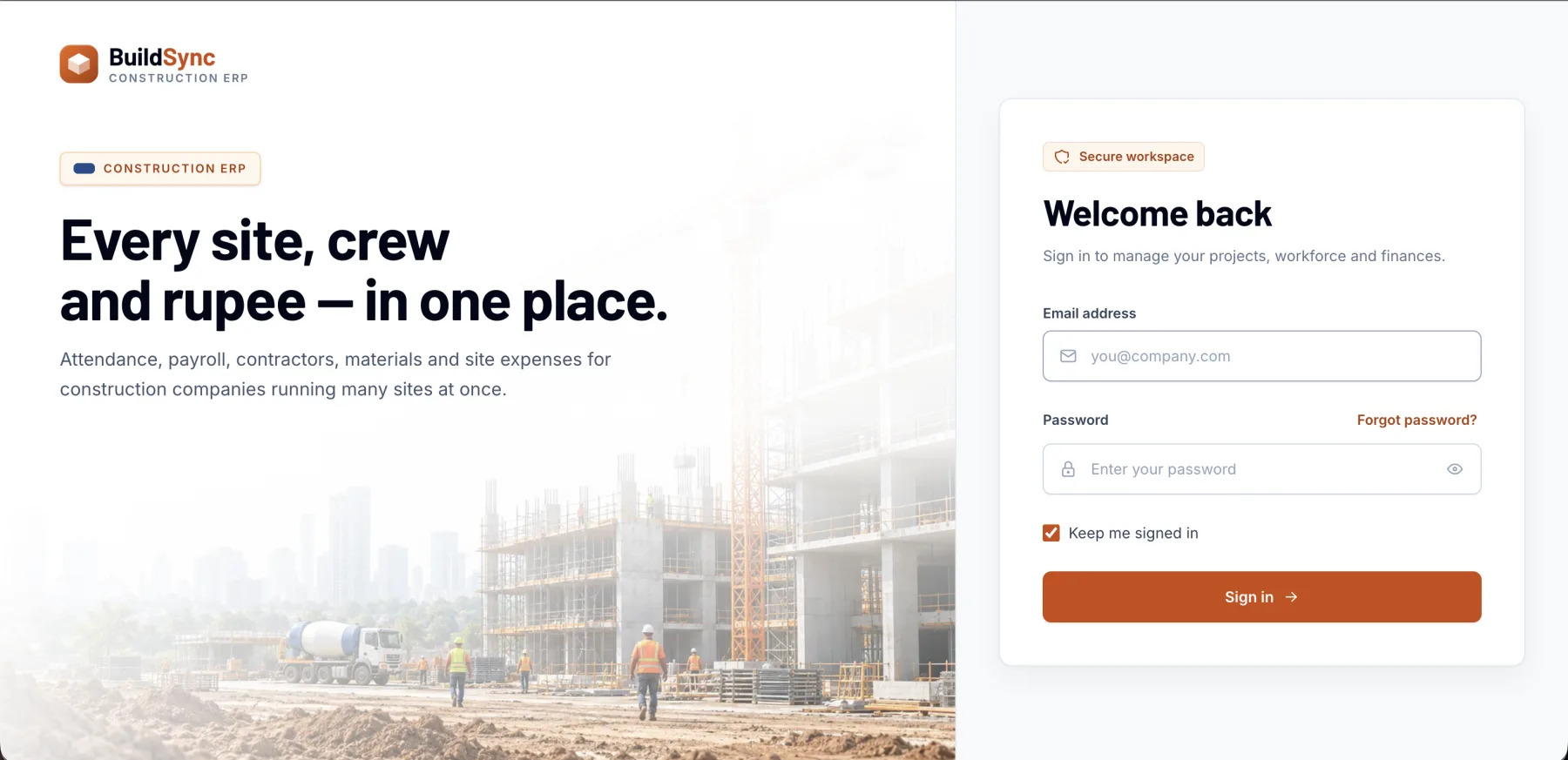
Construction ERP
Keep every construction project, crew and rupee moving together.
- modules in one workspace
- 12
- ready-made reports
- 15
- end-to-end workflows
- 3
- teams served
- 4
- Multi-project, multi-site
- Attendance to payslip
- Requirement to site stock
- Work order to contractor payment
Overview
Projects · Sites · Crews · Costs
Manage projects and sites, workforce, attendance, payroll, purchasing, contractors and expenses in one workspace. Built for construction companies and contractors managing multiple projects and sites.
One Workspace
Projects, people, purchasing and payments share the same records.
Fewer Spreadsheets
Muster, wage registers and cost summaries come straight from daily entries.
Clear Dues
Contractor balances, unpaid wages and outstanding advances are always visible.
Works on Any Screen
A responsive web workspace with mobile navigation, plus OpenAPI documentation for its API.
Highlights
Get the highlights.
01 / 04
Every project, site and crew
Clients, contract value, schedules and progress for every project, organised by site. Workforce profiles with pay basis, rates and site allocation, and tasks planned and tracked against each site.
- Projects & Sites
- Workforce
- Task Planning
02 / 04
Attendance that runs itself
Mark the daily muster by project and site — present, absent, half-day, leave and overtime — with leave balances, holidays and weekly offs applied automatically.
- Attendance & Muster
- Leave & Holidays
03 / 04
Materials and money, tracked
Site requirements become purchase orders, goods receipts and site stock. Contractor work orders, bills and site expenses sit against the project they belong to.
- Purchasing & Materials
- Contractors & Work Orders
- Expenses
04 / 04
Payroll and the full picture
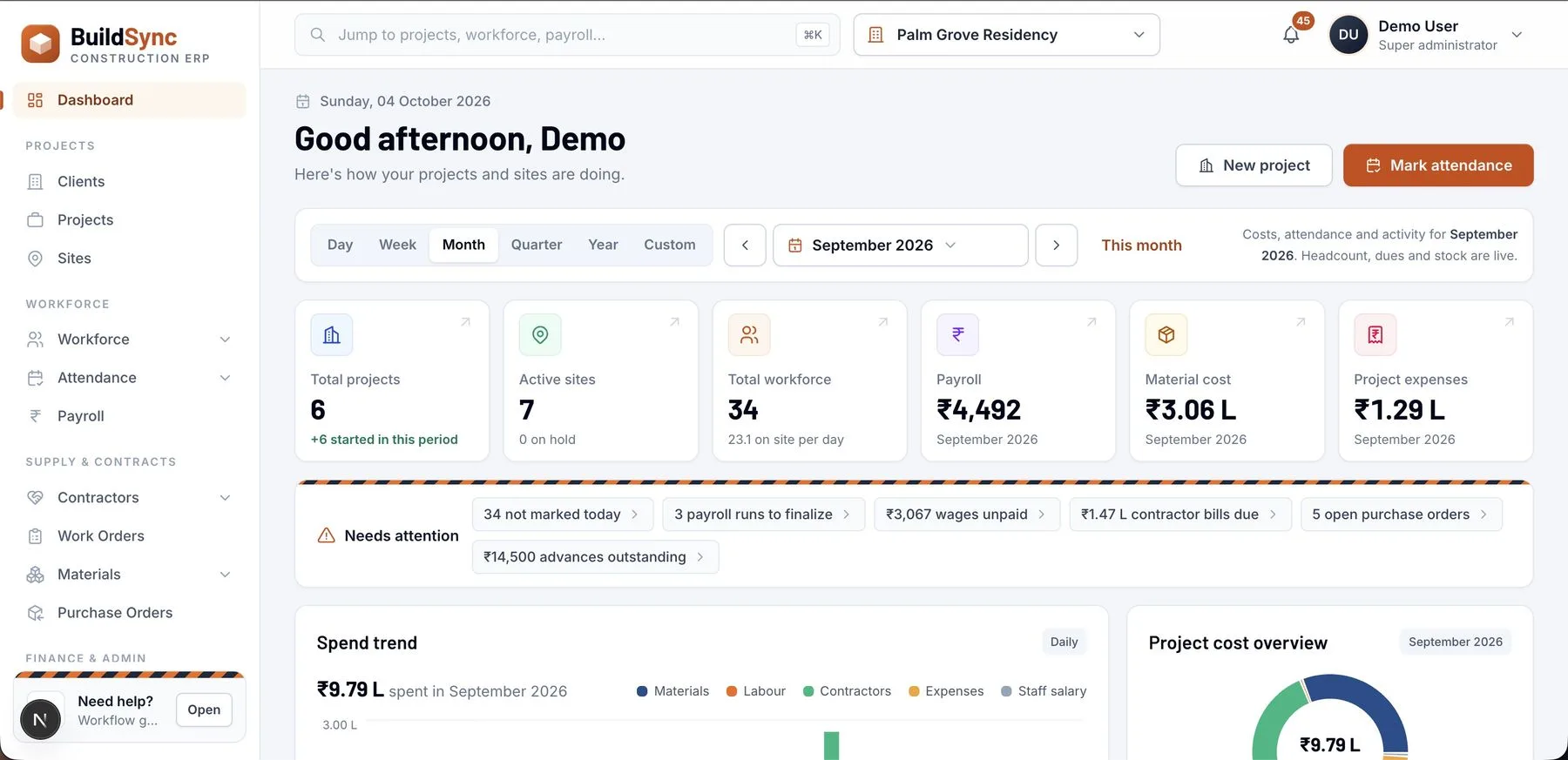
Payroll generated from attendance, with advances recovered and slips sent. The dashboard shows costs, trends and everything that needs attention today.
- Payroll & Payslips
- Advances
- Dashboard & Alerts

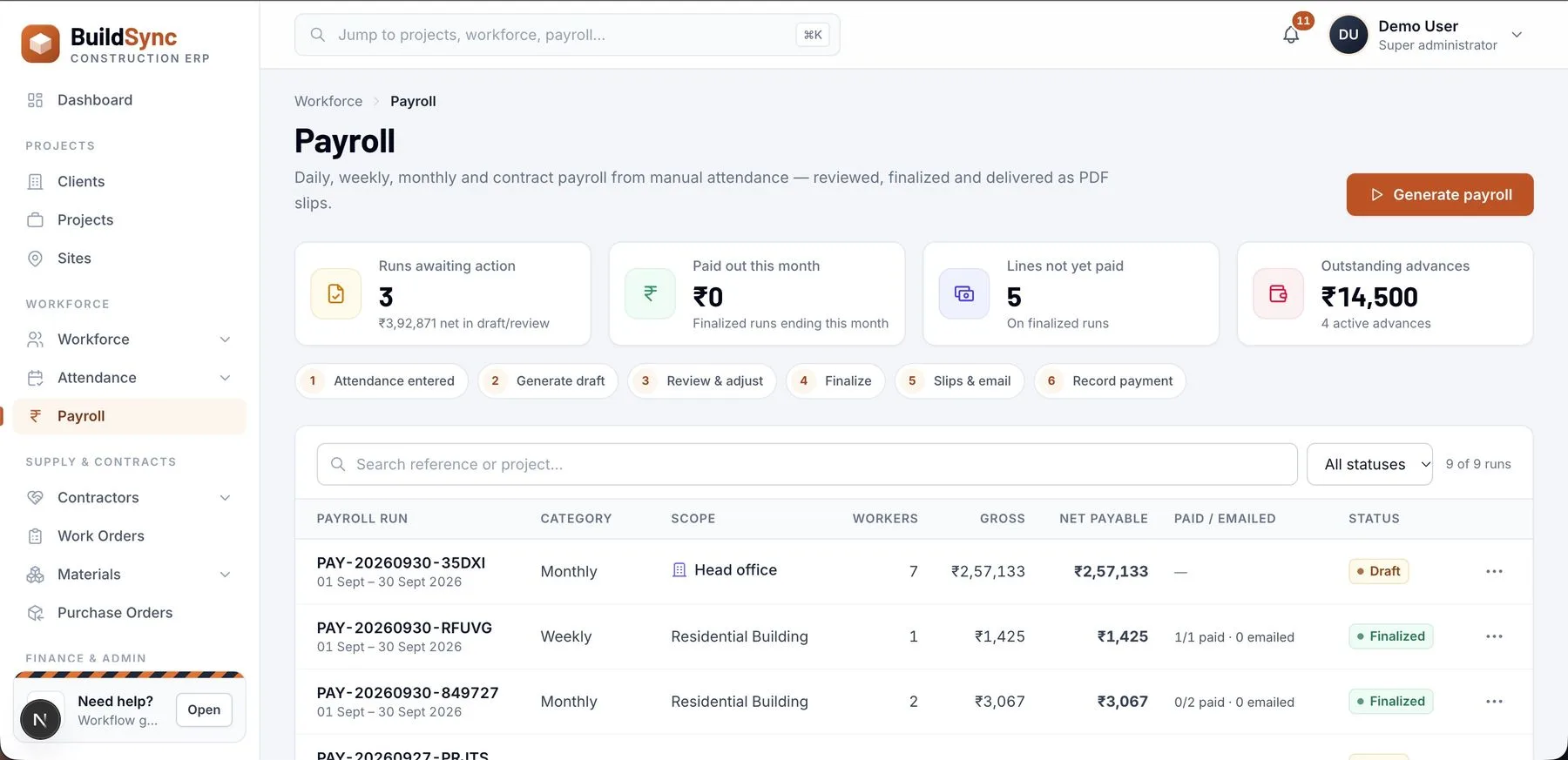
01
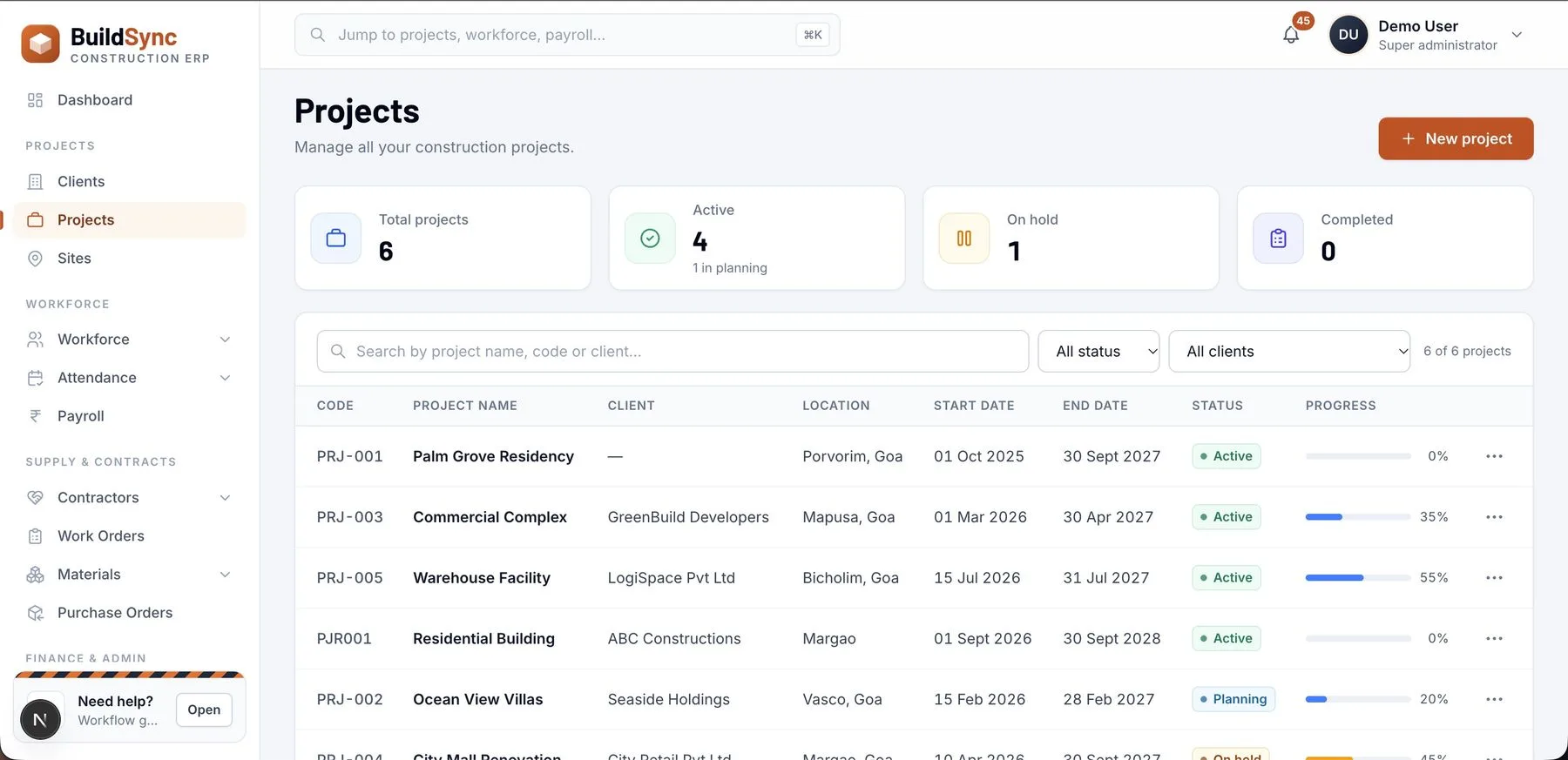
Every project, site and crew
Clients, contract value, schedules and progress for every project, organised by site. Workforce profiles with pay basis, rates and site allocation, and tasks planned and tracked against each site.
- Projects & Sites
- Workforce
- Task Planning
02
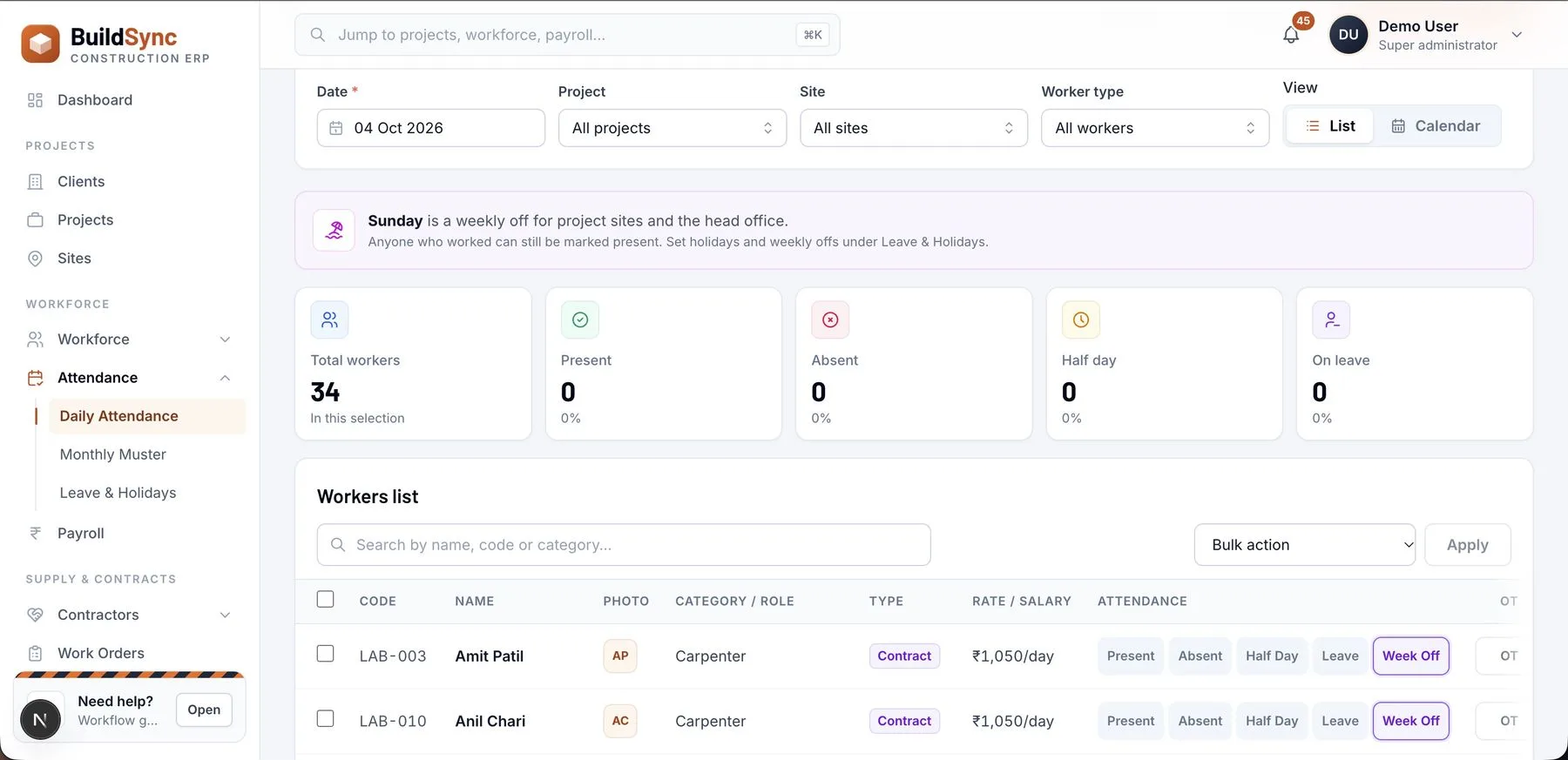
Attendance that runs itself
Mark the daily muster by project and site — present, absent, half-day, leave and overtime — with leave balances, holidays and weekly offs applied automatically.
- Attendance & Muster
- Leave & Holidays
03
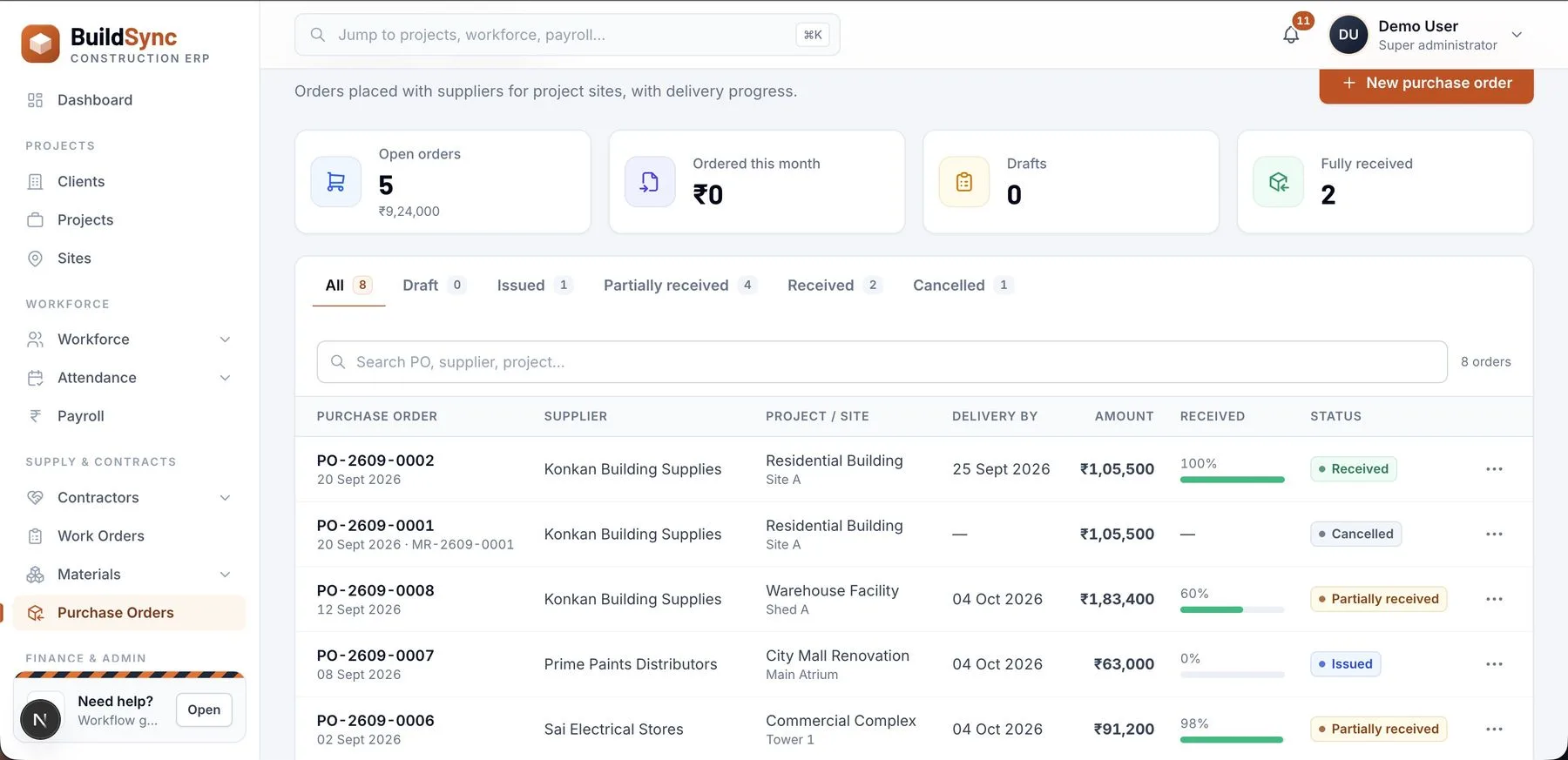
Materials and money, tracked
Site requirements become purchase orders, goods receipts and site stock. Contractor work orders, bills and site expenses sit against the project they belong to.
- Purchasing & Materials
- Contractors & Work Orders
- Expenses
04
Payroll and the full picture
Payroll generated from attendance, with advances recovered and slips sent. The dashboard shows costs, trends and everything that needs attention today.
- Payroll & Payslips
- Advances
- Dashboard & Alerts
Guided demo · sample data
Try BuildSync yourself.
Click through a real workflow on a sample project. Each step shows the actual screen and what it adds to the record.
Step 1 of 9
Set up the company workspace
An administrator adds the company's details and business type, then sets up user accounts, assigns roles and controls which parts of BuildSync each person can access.
- Company
- Users
- Roles & access
The workflow
How BuildSync works.
BuildSync brings project setup, site operations, workforce, purchasing, payroll and reporting into one workflow — from creating a project to reviewing its results.
Step 01
Set up the company workspace
An administrator adds the company's details and business type, then sets up user accounts, assigns roles and controls which parts of BuildSync each person can access.
Result: Each team member works in the areas relevant to their job — site operations, payroll, accounts or management.
- Company
- Users
- Roles & access
Step 02
Add clients, projects and sites
The project team records the client and creates a project with its value, location, status and progress, then adds one or more sites and assigns a site supervisor.
Result: Project, site and client information is organized in one place for daily operations and reporting.
- Clients
- Projects
- Sites
Step 03
Set up the workforce
Add employees and labourers with contact and work details, role or category, and pay basis and rate. Assign each person to a project and site, and allocate contractors too.
Result: A workforce list ready for attendance, task planning and payroll.
- Employees & labour
- Categories
- Contractors
Step 04
Plan the work
Managers create tasks, assign them to workers and set priorities and dates, updating status as work moves. Subcontracted work gets a work order with scope, items, rates, dates and terms.
Result: Everyone can see who is responsible for the work and follow task and contractor progress.
- Task planning
- Work orders
Step 05
Record daily site activity
Site staff open the attendance muster for a date and site and mark each worker present, absent, half-day, leave, weekly off or holiday — with overtime and remarks. The monthly muster shows each worker's month.
Result: Attendance is ready for workforce tracking and payroll calculations.
- Daily attendance
- Monthly muster
- Leave & holidays
Step 06
Request, purchase and issue materials
The site raises a material requirement that moves through submitted, approved and ordered. Purchasing issues a purchase order; deliveries are received against it, update site stock and are issued for project use.
Result: Every material request can be followed from site need through purchase, delivery and stock issue.
- Requirements
- Purchase orders
- Goods receipts
- Site stock
Step 07
Record project and company costs
Staff record expenses against the project or site with date, category, amount and payment method; overheads go to general expenses. Worker advances and contractor bills are recorded, approved and paid.
Result: Project costs sit alongside labour, materials and contractor costs, ready for review.
- Site expenses
- General expenses
- Advances
- Contractor bills
Step 08
Prepare and finalize payroll
For a pay period, BuildSync generates a payroll run from pay details and recorded attendance. The team reviews payable days, overtime, allowances, advances and deductions, adjusts, then finalizes.
Result: Payments are recorded and salary slips downloaded or emailed — organized by period.
- Payroll runs
- Salary slips
Step 09
Monitor progress and review reports
Managers use the dashboard and reports — workforce, attendance, payroll, advances, purchases and stock, expenses and contractor payments. When work is complete, the project status is updated and its costs reviewed.
Result: Management reviews a project's operational and financial records in one workspace.
- Dashboard
- Reports
Also in BuildSync
From site enquiry to final payment.
BuildSync's business modules carry a client from the first enquiry to the last payment, with purchasing and stock for every site running alongside.
- Enquiry to payment
- One client record
- Purchasing & stock built in
BuildSync · client record
LiveCoastal Developers
ENQ-014 · sample data
Activity
- Cement and steel received into site stocknow
- Credit note CN-006 appliedstep 8
- Part payment received · balance trackedstep 7
Step 01
Capture the enquiry
A developer asks about a new residential block. Record the source, contacts, site location and requirements.
Step 02
Follow up
Assign an owner and log every call, meeting, email, site visit or WhatsApp against the enquiry.
Step 03
Track the opportunity
Move the job through the sales pipeline so you always know which projects are close to winning.
Step 04
Quote the work
Convert the enquiry to a client and prepare a quotation with items, quantities, rates and tax.
Step 05
Confirm the order
Turn the accepted quotation into a sales order, with no re-typing of items or rates.
Step 06
Bill the client
Issue invoices against the order with items, quantities and tax.
Step 07
Collect payments
Record client payments and see what is still outstanding on every invoice.
Step 08
Returns & support
Handle returns with credit notes and client issues with support tickets, on the same record.
Step 09
Buy and stock materials
Purchase orders, goods receipts, supplier bills and returns keep every site's materials and stock in step.
- Faster enquiry-to-payment
- Fewer spreadsheets
- Clear client dues
In short: Set up the workspace, organize projects and people, run site activity, manage materials and costs, process payroll, then review project results.
Built for every team.
Site operations
Mark attendance, raise material requirements, receive deliveries and log site expenses.
Project managers
Track progress, tasks, budgets and costs across every project and site.
HR & payroll
Manage workers, leave and holidays, run payroll, recover advances and issue slips.
Accounts
Follow purchase orders, contractor bills, payments and dues, with exportable registers.
Reports
Workforce
- Employee / labour list
- Project & site-wise workers
- Daily muster
- Weekly & monthly attendance summary
Payroll
- Daily & weekly wage registers
- Monthly salary register
- Contract payroll
- Payslip email status
- Advances & recoveries
Costs & supply
- Project cost summary
- Material purchases & receipts
- Site stock
- Expenses
- Contractor bills & payments
Consolidated
- Contract value, costs, purchases, payroll, expenses, payments, dues, attendance and stock in one report
Target industries
- Construction companies
- Contractors
- Real-estate developers
Integrations & exports
- OpenAPI documentation
- Email payslips
- CSV & PDF export
Need another system connected? We build custom integrations as part of implementation.
See BuildSync run your business.
- 01
A guided demo
BuildSync with sample data, focused on the workflows your team runs every day.
- 02
Shaped to you
We built BuildSync, so we can configure it for your workflows or extend it with the modules you need.
- 03
Clear pricing
Licensing depends on the modules, users and deployment you need, and is shared during the demo.
Common questions
How can I see BuildSync before buying?
Book a demo and we'll walk you through BuildSync with sample construction data, focused on the workflows your team runs.
Does it handle multiple projects and sites?
Yes. Projects contain sites, and attendance, workforce allocation, purchasing, stock, expenses and reports can all be filtered by project and site.
How is attendance recorded?
Attendance is entered in the app by project and site: present, absent, half-day, leave and overtime. Payroll is then generated from those entries.
Which payroll types are supported?
Daily, weekly, monthly and contract payroll runs, with adjustments, advance recoveries and downloadable PDF salary or wage slips.
Can BuildSync be customised for our company?
Yes. Create My Site built BuildSync, so we can configure it for your workflows or extend it with modules you need. Pricing and licensing are shared during the demo.
Request a demo
See BuildSync with your workflows.
A guided walkthrough with sample data, tailored to how your team works. Pricing and licensing are shared during the demo.
Related products
Explore the product line.

Business ERP
BizCore
A powerful multi-company ERP for people, clients, billing, compliance, payroll, expenses, purchases, finance and more.
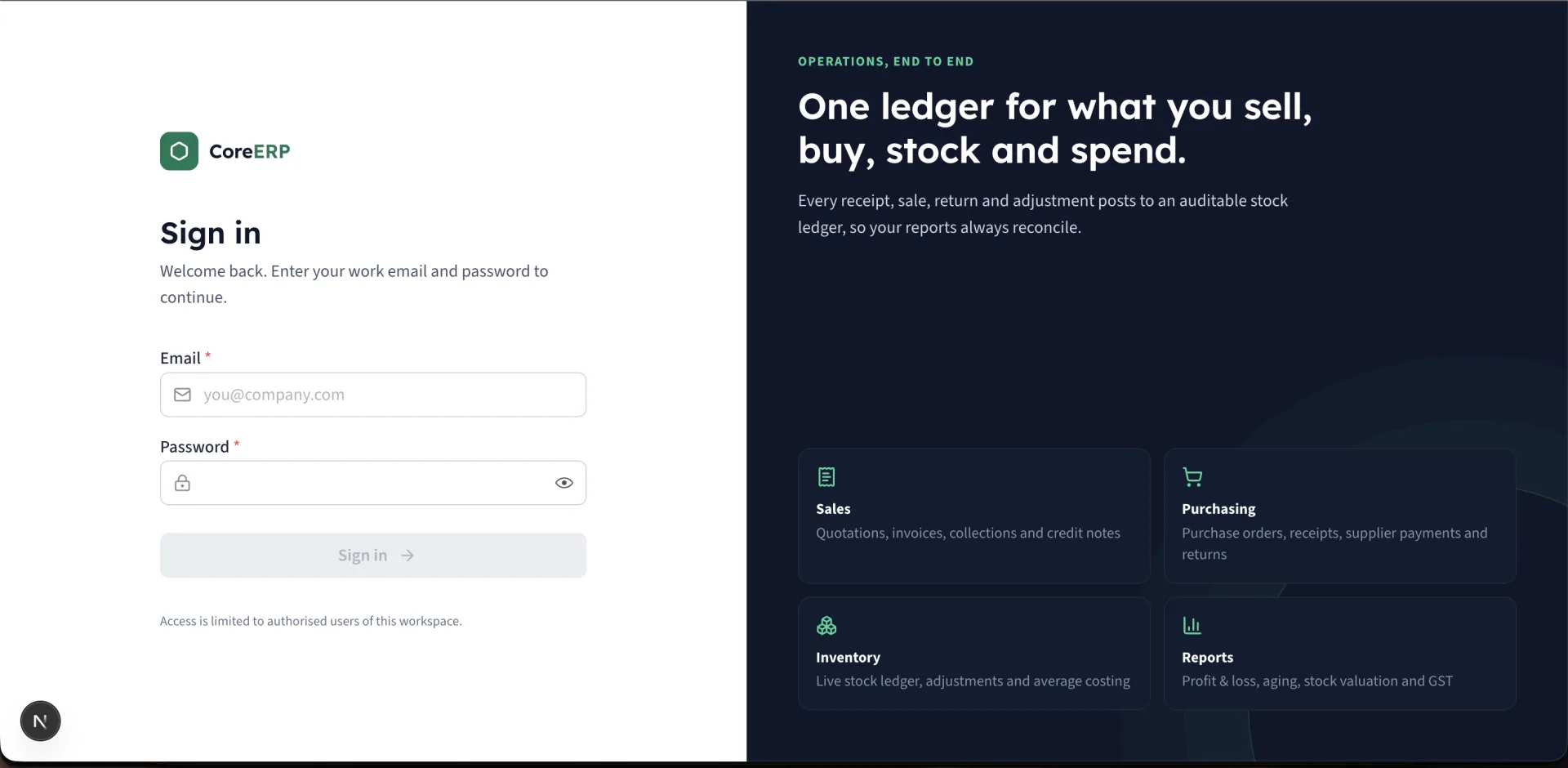
Business Management
Core ERP
Manage customers, inventory, purchases, quotations, sales, expenses and more — all in one powerful, easy-to-use platform.
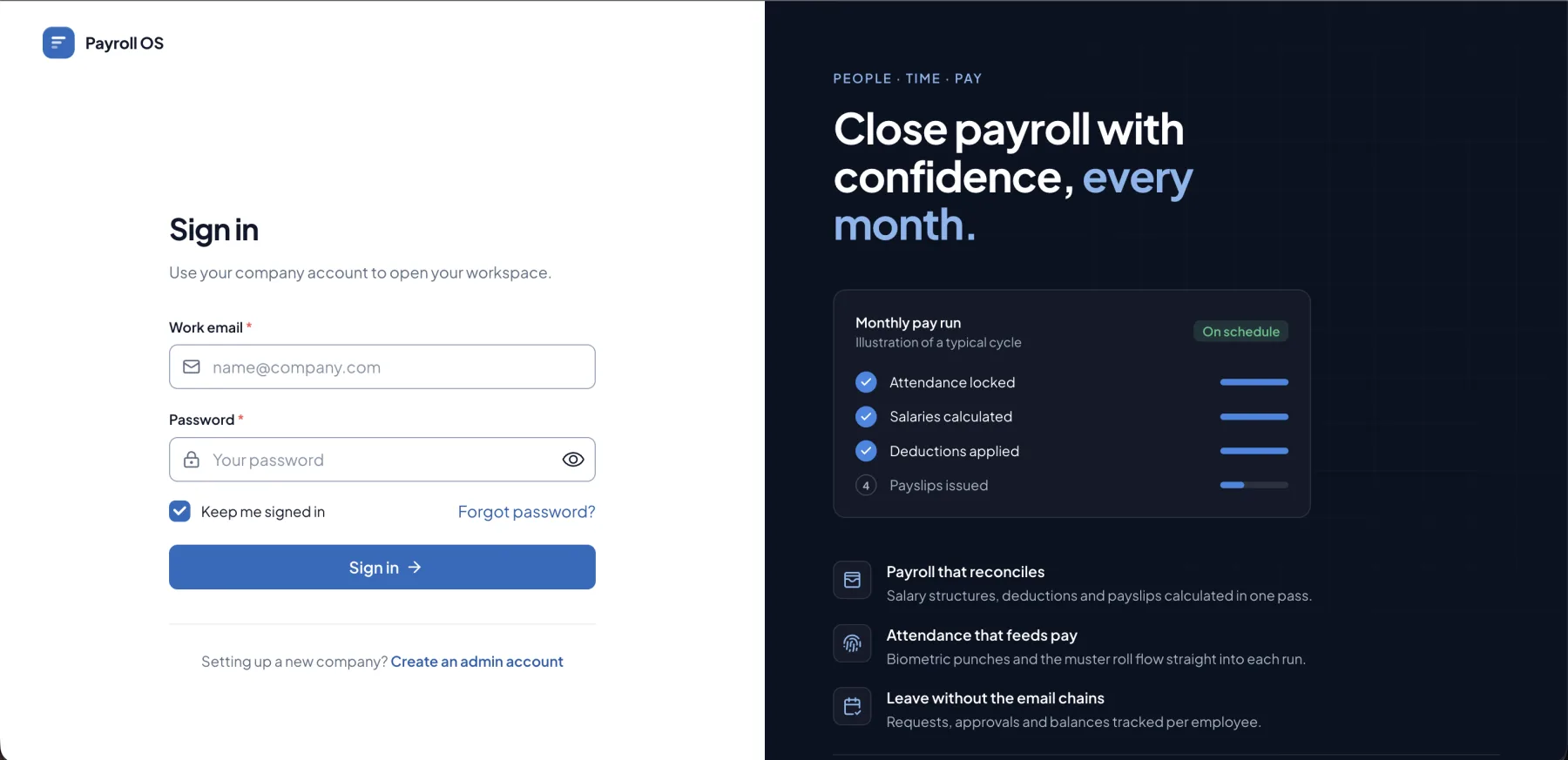
HR & Payroll
PayroNext
Keep every employee record, attendance mark, leave request and salary structure in one place, then run the month's payroll and send payslips in a few clicks.